

Start with what you have
You don't need to buy anything to start selling. A computer or tablet with a browser runs the web register, and the Paybrain app turns your phone into a card reader with Tap to Pay. This page covers the web and the phone app. When you outgrow them, the Register adds a printer, drawer, scanner and card reader at the counter.
Set it up
Create your account and connect Stripe
Sign up and connect Stripe so you can take cards. See Create your account.
Check your location's time zone
A location created on the Register takes the tablet's time zone. Without a Register, set it yourself: on the web, open Manage → Locations, add your store or open it, and check Timezone. A new location starts on your computer's time zone. Closeouts and reports follow it, so a wrong one puts sales on the wrong day.
Link your phone for Tap to Pay
Install the Paybrain app from the App Store or Google Play and sign in. Open the POS tab and, under Accept Contactless Payments, tap Tap to Pay on iPhone (on Android, Tap to Pay). Give the phone a name and tap Continue. When it's done you'll see This phone is linked for Tap to Pay. Web registers can send a sale here.
Pick that phone on your computer
Open paybrain.io/pos/readers. Under Phones for Tap to Pay, tap Use here next to your phone. The browser remembers it and shows This computer.
Ring up a test sale
Open the web register at paybrain.io/pos/register, use Quick sale to add a small amount, and tap Charge $…. Choose Send to phone and pay on your phone. Refund it afterwards from the sale. See Refunds and voids.
Sell in a browser
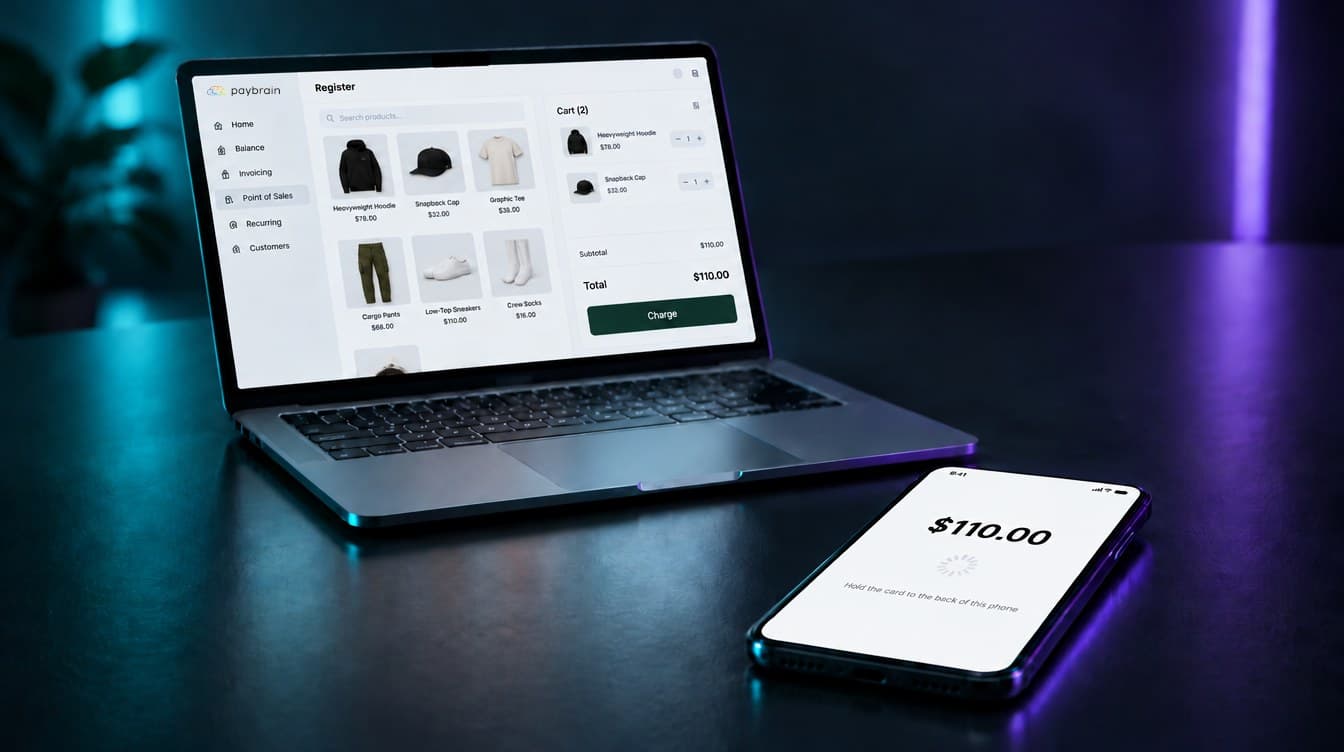
The web register at paybrain.io/pos/register works in any browser on a computer or tablet. Tap items to add them, search the catalog, or tap Quick sale to charge an amount with a description. Then tap Charge $…. Take payment shows these options:
| Option | What happens |
|---|---|
| Send to phone | The sale goes to the phone you picked, and the customer taps their card there. See Send a sale to your phone. |
| Keyed card | Type the card number. The browser asks Add a tip? first, then shows the card form. |
| Cash | Record cash. See Record cash. |
| Add to tab | Keep the sale open and settle later. Shows only when tabs are turned on. See Tabs. |
| Pay on reader | Needs a paired Stripe card reader. Without one, it's greyed out. |
Have a USB barcode scanner? Plug it into the computer and scan into the Search or scan a barcode box. An exact barcode or SKU match goes straight into the sale.
Use your phone as the card reader
Tap to Pay lets customers tap a contactless card, phone or watch on the back of your phone.
- iPhone: Tap to Pay on iPhone, on iPhone XS or later
- Android: Tap to Pay, on Android phones with NFC
Link the phone on the POS tab under Accept Contactless Payments. On iPhone you can also do it under Settings›Tap to Pay.
Tap to Pay has no tip screen of its own, so the Paybrain app always asks for the tip on its own screen before the customer taps. If loyalty or memberships are on, it first asks for the customer's phone number. That step is optional: tap Skip to go straight to the tip.
Send a sale to your phone
Ring up on the computer, and the customer pays on your phone.
- On the web register, tap Charge $…, then Send to phone. The button shows Tap to Pay on and your phone's name. If you haven't picked a phone yet, choose one under Phone for this browser.
- The computer shows Sent to your phone's name and waits. You can tap Cancel there to call the sale off.
- On the phone, Sale sent to this phone opens by itself, whatever screen you're on. Pick a tip, or tap No tip or Charge $….
- Hold the phone out. The customer taps their card or device on it.
- The phone shows Payment complete, and the web register switches to Paid on its own.
The Paybrain app must be open on the phone to take a sale. If you close the sale sheet, the POS tab keeps it as Sale waiting, with Tap to pay to reopen it and Cancel sale to call it off. If the card is declined, the phone shows Card declined. Tap Try again, or Cancel sale. Nothing is charged until a tap goes through.
Sell from your phone alone
The POS tab in the Paybrain app is a full register. Tap Register to ring up from your catalog, or Quick sale to charge an amount without picking items.
To scan, tap the barcode icon in the search bar. Your camera scans barcodes, and you can keep scanning for the whole basket.
Tap Charge, then choose:
| Option | What happens |
|---|---|
| Tap to Pay | Asks Add a tip?, then Hold the card to the back of this phone. |
| Cash | Record cash. See Record cash. |
| Add to tab | Keep the sale open. Shows only when tabs are turned on. |
The phone app has no keyed-card option. To type in a card, use the web register.
Sales made in the app are register orders, the same as sales on the Register. They show up in reports and closeouts.
Record cash
There's no drawer to pop, so keep the cash somewhere safe yourself. Paybrain still records every cash sale and shows the change to give.
At the end of the day, count your cash against the Cash column on the day's closeout. See Closeouts.
Send receipts by email
Without a printer, receipts go by email. When a customer with an email address is attached to the sale, Paybrain emails the receipt automatically, and the Paid screen shows Receipt emailed to …. If there's no email on file, it says No email on file. Open the sale to send a receipt.
The Register can also print. See Receipts.
- On the Paid screen, tap View sale.
- Type the customer's address into Email and tap Email receipt.
- On the Paid screen, tap View sale.
- Type the customer's address into Email and tap Email receipt.
What you don't get without hardware
- No printed receipts. Receipts are email only.
- No cash drawer. Cash is recorded, but nothing opens.
- No hands-free scanner. The phone scans with its camera, one item at a time. The web register works with a USB scanner you plug in.
- No card reader beyond Tap to Pay. Customers can't insert or swipe a card. Tap to Pay takes contactless cards, phones and watches only, and the web register uses your phone to take them.
In-person card payments, including Tap to Pay, are 3.0% + 10¢ on the Basic plan. See Plans and fees.
When the Register is worth it
Tap to Pay suits lower volume and selling on the go: markets, house calls, a small shop with a few sales an hour. A busy counter is faster with the Register. The cashier rings up on a 15" screen, customers tap, insert or swipe on their own reader and tip there, receipts print, and the drawer opens on cash sales.
The Register kit is $999, card reader included, with no monthly fee. Everything you set up on the web and phone carries over, because it's the same account. See the Register and Set up your Register.