

Set up your Register
From the box to your first sale in about 20 minutes. You'll need your phone, your business bank details for Stripe, and a spot near a power outlet.
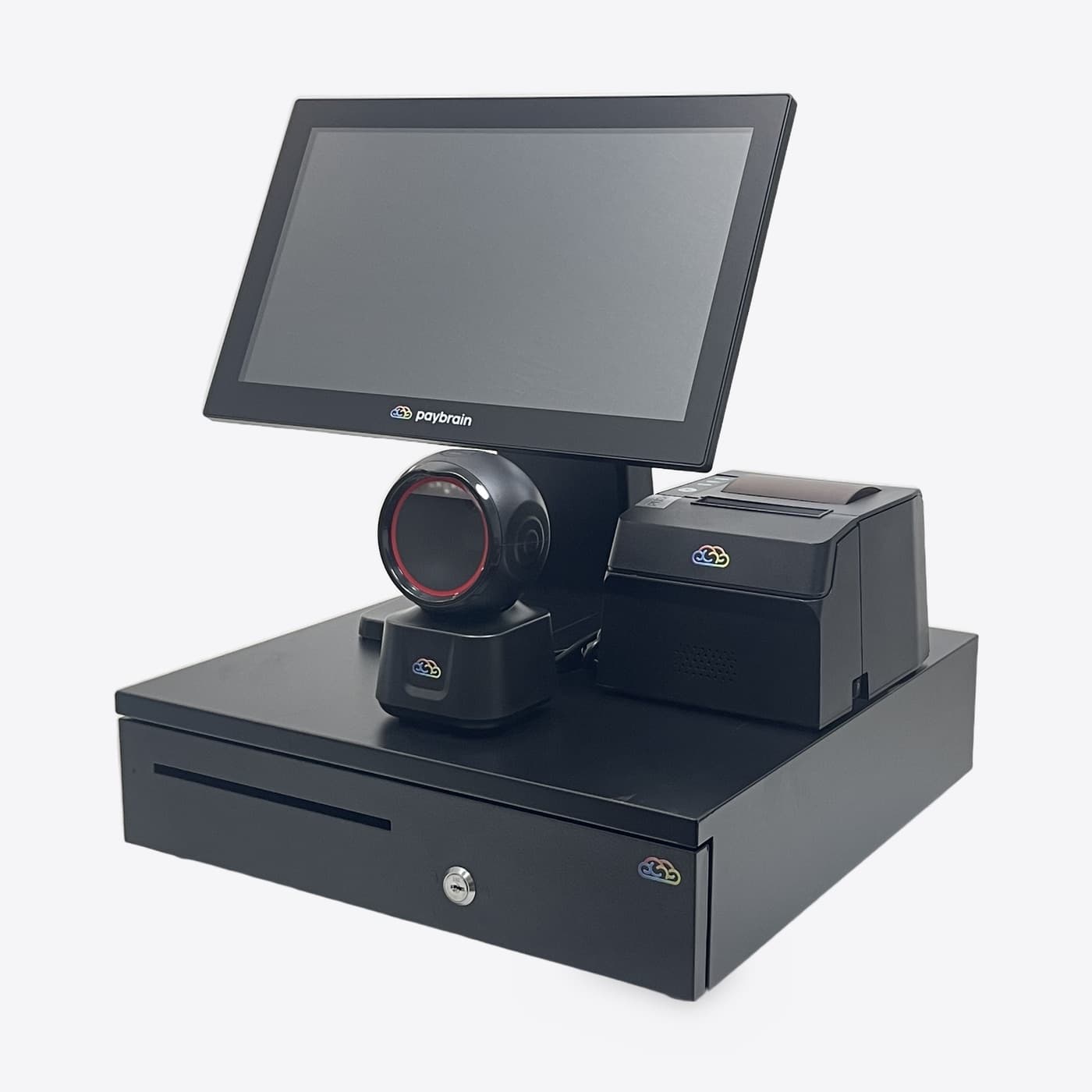
What's in the box
- The Register: a 15" touchscreen on a stand
- Receipt printer: 80mm thermal, USB
- Cash drawer, with its keys
- Barcode scanner: a hands-free orb, USB
- Stripe card reader: the Stripe Reader S700 is included unless you picked a different one at checkout
Set it up
Place the drawer and stand
Set the cash drawer where the cashier stands and put the Register and printer on top of it, or next to it. Leave room behind the Register for the cables.
Plug everything in
The Register's ports are along the bottom edge, behind the screen.
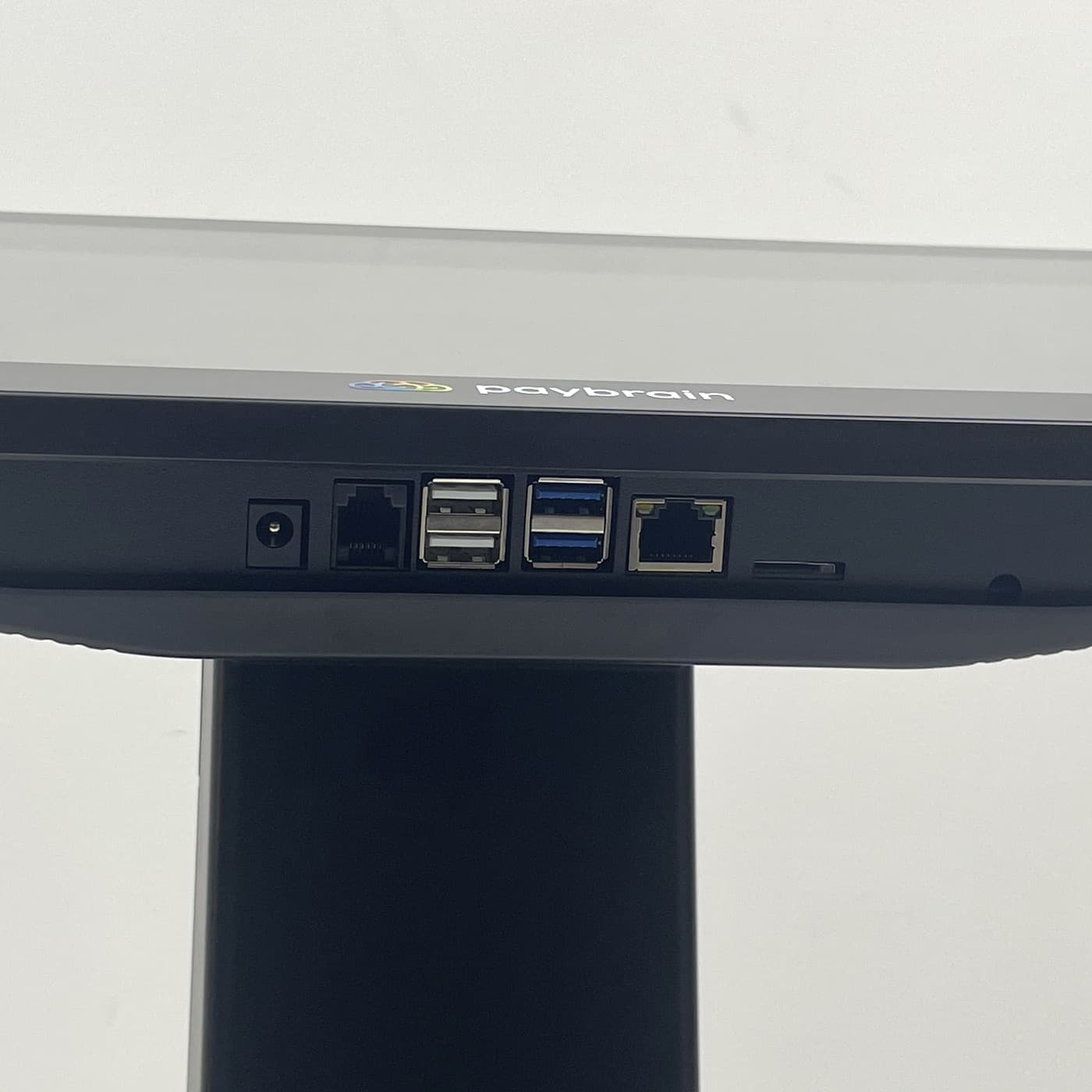
From left: power, RJ11, four USB, Ethernet, microSD. - Printer → Register: plug the printer's USB cable into any USB port, then plug in the printer's power adapter.
- Drawer → printer: plug the drawer's cable into the port on the back of the printer. The Register opens the drawer through the printer, so the drawer won't open without one.
- Scanner → Register: any USB port.
- Power: plug in the Register last and turn it on.
Load receipt paper
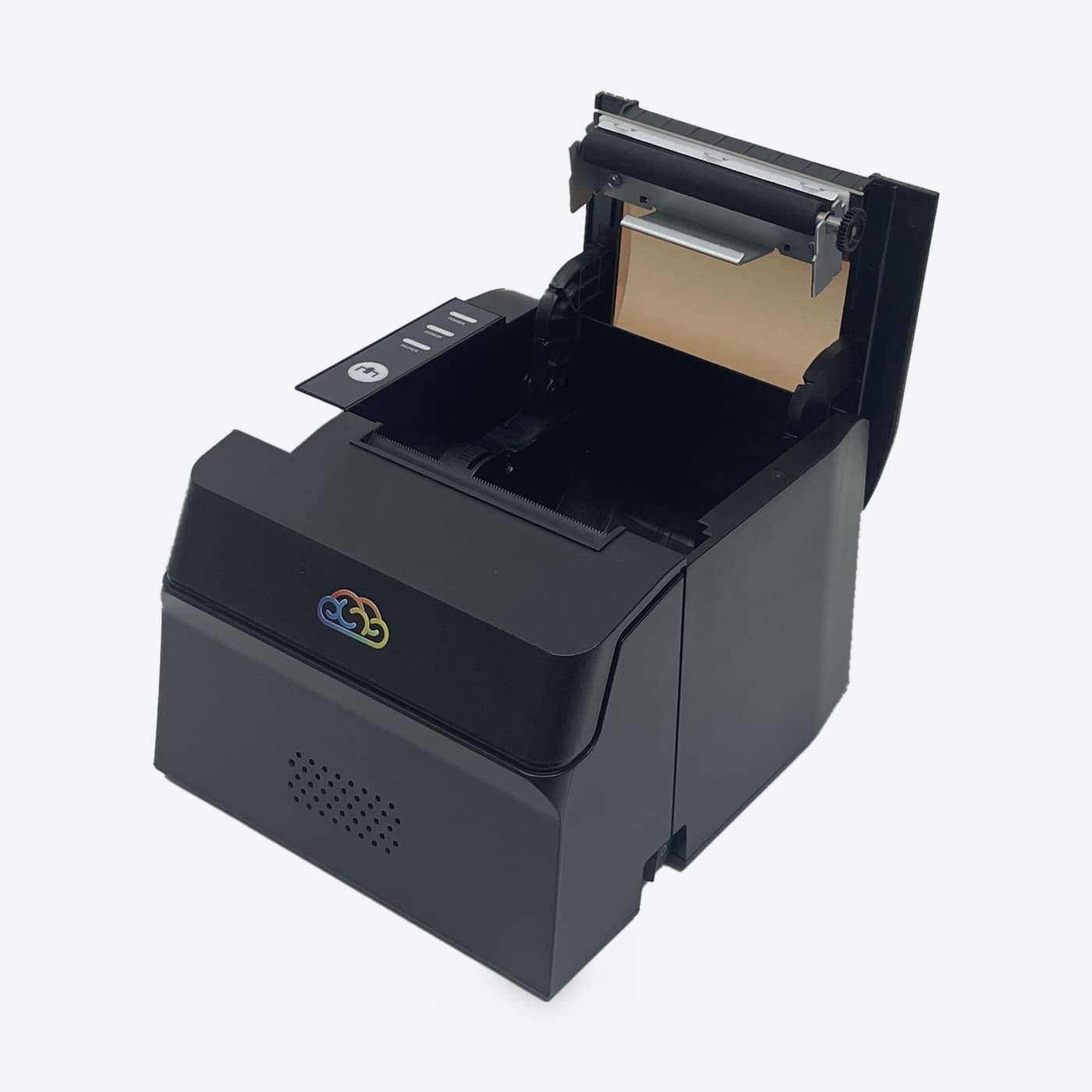
Open the printer lid, drop in a roll of 80mm thermal paper so the paper feeds from underneath toward you, pull a few inches out past the cutter and close the lid.
Get online and set the time
Swipe down from the top of the screen and join your Wi-Fi, or plug an Ethernet cable into the port on the back.
Then open Android's Settings → System → Date & time and check the time zone. The Register doesn't ask for one: it saves the tablet's time zone to your location when the location is created, and that time zone decides when your business day starts and ends on reports and closeouts.
Sign in
Open the Paybrain Register app. Enter your phone number and tap Send code, or tap Email me a code instead. Enter the code and tap Verify.
New to Paybrain? Tap New here? Create an account. It's the same account you'll use in the app and on the web.
Run the setup wizard
The first time you sign in, Set up your register walks you through seven short steps. You can change every one of them later.
Step What you set What kind of business? Restaurant, Café or Bar · Retail · Salon or Med Spa · Gym or Studio · Something else. This picks the apps that start turned on. Business details Individual or Company and your business display name, then your first and last name (individual) or EIN (company, optional) Sales tax Turn on Collect sales tax and enter your rate Card pricing Show card prices and give cash customers the discount. See Card pricing. Loyalty & marketing Activate loyalty & campaigns to reward repeat customers Choose your apps Menu, products, services, tabs, memberships, appointments and more. Turn on only what you use. Team & locations Your location name, business hours and address, and whether Multiple people will use this register Connect Stripe
Next comes Set up payments. Scan the QR code with your phone and finish there, or tap Open on this device instead. Stripe asks you to:
- Confirm your business details
- Verify your identity
- Add where payouts should go
Leave the Register on this screen. It updates by itself: Waiting for you to finish on your phone…, then Verifying your details…, then You're all set. It then takes you straight to pairing your card reader.
More detail: Connect Stripe.
Pair your card reader
Charge the reader and turn it on. Connect it to Wi-Fi from the reader's own settings (swipe in from the left edge, tap Settings, enter the admin passcode 07139). Then get a pairing code from the reader:
- Swipe right from the left edge of the reader's screen.
- Tap Settings and enter the admin passcode 07139.
- Choose Generate pairing code.
The code looks like three words, such as
quick-brown-fox. On the Register, tap Link a new reader, then I have the code, type it into Pairing code and tap Link this reader. Codes expire after a few minutes, so if it fails, generate a new one.These steps are for the Stripe Reader S700, S710 and WisePOS E. For another reader, see Stripe's setup guide for your reader.
Missed it during setup? Go to Settings›Card readers and tap Link a card reader. Linking a new reader needs the Manage Settings permission. Anyone can pick a reader that's already paired at your location.
Set up your team
If you turned on Multiple people will use this register, you entered an owner or manager name and a 4–6 digit PIN in the wizard. That person is the admin, and the Register now shows Enter your PIN whenever it locks.
Add everyone else under Settings›Employees, each with their own PIN and role. To lock the screen when nobody's using it, go to Settings›Auto-lock.
Ring up a test sale
On the Register screen, tap an item, or tap Quick sale to add a one-off item. Tap Charge $…, then:
- Card: the reader shows the total, asks for a tip if you've turned tipping on, and waits for the card. Insert, tap or swipe.
- Cash: enter what the customer handed you. The Register shows the Change due and pops the drawer.
On the Paid screen, tap Print receipt. The first time, Android asks to let Paybrain use the printer. Tap Allow, and tick the box to always allow it. If the receipt prints and the drawer opens, you're ready to sell.
To undo the test, tap View sale on the Paid screen, or find it in Reports›Orders, then tap Refund order. See Refunds and voids.
Using the scanner
There's nothing to set up. Scan a barcode on the Register screen to add the item to the sale. Scan an unknown barcode in Products to create a new product, and the Register looks up the name for you. The scanner also works in Inventory counts, at member Check-in, and to pull up a sale by the barcode on its receipt.
Rename this register
Each Register gets a name like Register 1 so it can be told apart on reports and closeouts. To change it, open Settings, tap this register's name under This register, type a new name such as "Front counter" and tap Save. Renaming needs the Manage Settings permission.
Updates
The Register updates itself. When an update has downloaded, you'll see Update ready. Tap Restart now between customers. Larger updates come through Google Play, and you'll see Update available or Update required. To check for updates yourself, go to Settings›System›Software update.
Something not working?
See Troubleshooting for reader pairing, printing, the cash drawer and connection problems.